Summary: Security camera alerts notify users of motion, people, vehicles, or other events via push, email, or text. Setup involves choosing alert types, detection zones, and schedules. Reducing false alerts and adding professional monitoring make notifications more reliable and actionable for businesses.
Security camera alerts notify you when your system detects movement, a person, a vehicle, restricted-area entry, or another configured event. Depending on your camera and monitoring platform, alerts may arrive as push notifications, emails, text messages, or verified video events.
This guide explains how security camera notifications work, how to configure reliable alerts, and how businesses can reduce unnecessary notifications through motion zones, schedules, AI analytics, and professional monitoring.
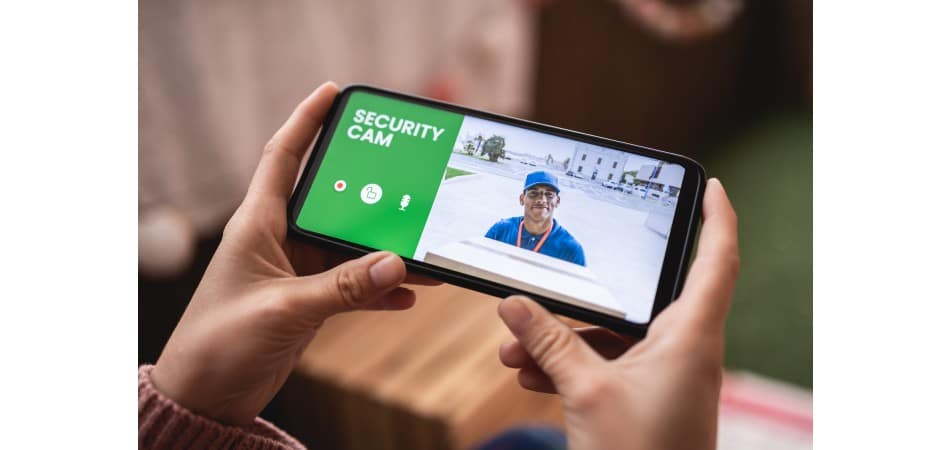
What Are Security Camera Alerts?
A security camera alert is a notification generated when a camera or connected security system detects a predefined event.
Common security camera alerts include:
- Motion detection.
- Person detection.
- Vehicle detection.
- Line-crossing alerts.
- Restricted-area entry.
- Loitering.
- Door or gate activity.
- Camera tampering.
- Loss of video or network connection.
- Temperature or equipment alerts, where supported.
Security camera alerts may be sent directly to a mobile app or routed through a video management system. Some systems also send events to a professional monitoring center for human review and response.
Can Security Cameras Send Real-Time Alerts?
Yes. Many modern IP, cloud, and connected security camera systems can send real-time security camera alerts through push notifications, email, SMS, or a monitoring platform.
The speed and reliability of an alert depend on:
- Camera and system configuration.
- Internet or cellular connectivity.
- The selected alert type.
- Motion zones and schedules.
- AI analytics.
- Mobile-device settings.
- Power and network availability.
A push notification only informs you that the system detected a possible event. It does not guarantee that someone will open the alert, verify the activity, or respond. Professional video monitoring adds human review and an established response procedure.
How Do Security Camera Push Notifications Work?
The process usually involves five steps:
- The camera detects motion or another configured event.
- The camera or platform analyzes the activity.
- The system sends a notification to selected users.
- The recipient opens the alert to view live or recorded video.
- The user or monitoring professional follows the appropriate response procedure.
For commercial properties, security camera alerts can also be connected to access-control systems, alarm panels, cloud video platforms, and live video monitoring.
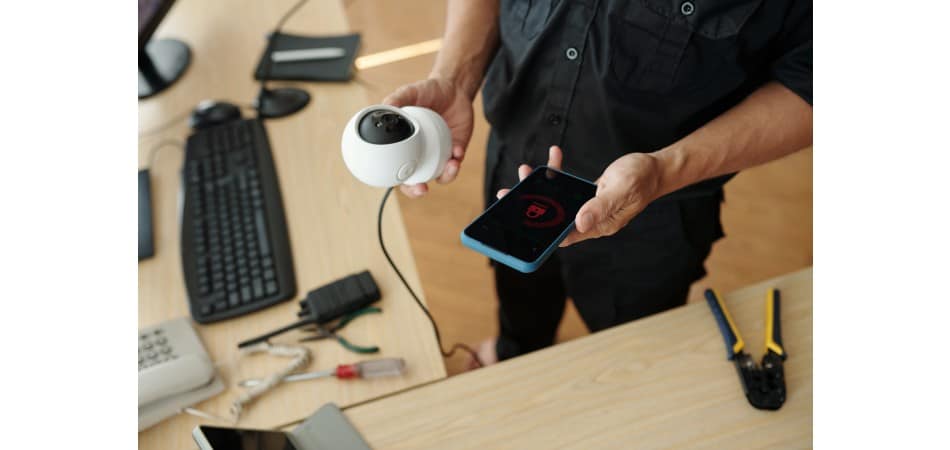
How to Set Up Security Camera Alerts
The exact menu names vary by camera brand and software, but the general setup process is similar.
1. Connect the camera to the network
Confirm that the camera has power and is connected to the correct Wi-Fi, Ethernet, cellular, NVR, or cloud platform.
2. Open the camera or security app
Sign in to the official mobile application, NVR interface, or video management platform connected to your system.
3. Enable push notifications
Allow notifications on your phone and activate push alerts inside the camera or security-system app.
4. Select the alert type
Choose the events that matter to you, such as:
- Person detection.
- Vehicle detection.
- Motion.
- Line crossing.
- Restricted-area entry.
- Camera tampering.
- System offline.
5. Configure detection zones
Limit alerts to important areas. Exclude roads, sidewalks, trees, neighboring properties, or other locations that create irrelevant motion.
6. Set schedules
Configure alerts for nights, weekends, holidays, or other periods when activity is unexpected.
7. Test the camera alert
Trigger a test event and confirm that:
- The notification arrives.
- The correct camera is identified.
- The video opens successfully.
- The alert reaches the intended users.
- The event is recorded correctly.
How Do I Get Camera Alerts on My Phone?
To receive security camera alerts on your phone, install the camera or security-system app, connect your camera or recorder, allow notifications on your device, and enable push alerts within the app.
Follow these steps:
- Download the camera manufacturer’s official app.
- Sign in to your account.
- Add or select the camera.
- Allow notifications in your phone settings.
- Enable motion, person, vehicle, or other relevant alerts.
- Configure detection zones and schedules.
- Trigger a test event to confirm that the alert arrives.
The exact settings vary by camera brand, model, app, subscription, and video management platform.
How to Reduce False Security Camera Alerts
Too many irrelevant notifications can cause alert fatigue. Users may eventually ignore alerts if the system constantly reports harmless activity.
Use activity zones
Limit detection to entrances, gates, equipment areas, parking spaces, or other locations that matter to the business.
Adjust sensitivity
High sensitivity may create alerts from shadows, rain, insects, moving trees, or changing light. Low sensitivity may fail to detect relevant activity. Test settings at different times of day and night.
Use person and vehicle detection
Where supported, AI analytics may help prioritize people and vehicles instead of treating every movement as a security event.
Create schedules
A business may need different rules during operating hours, after-hours periods, weekends, and holidays.
Check camera positioning
Glare, reflections, poor angles, obstructions, and excessive distance can affect alert accuracy. Repositioning a camera may be more effective than simply increasing sensitivity.
Maintain the system
Clean camera lenses, check network connectivity, update software, and monitor camera health. An offline or obstructed camera cannot provide dependable alerts.
Why Are My Security Camera Alerts Not Working?
If your security camera is not sending alerts, check the following:
- Push notifications are enabled on your phone.
- The camera is connected to power and the network.
- The camera or recorder is not offline.
- The correct notification schedule is active.
- Motion or person detection is enabled.
- The detection zone includes the relevant area.
- The app is updated and connected to the correct account.
- Your camera subscription or cloud plan supports notifications.
- The phone is not blocking notifications through Do Not Disturb or battery-saving settings.
If alerts still do not work, restart the camera and app, check the network connection, and review the system’s event logs. For commercial surveillance systems, a camera-health monitoring service can help identify offline cameras and other system faults.
Can Security Cameras Send Text or Email Alerts?
Many security camera systems can send alerts through push notifications, email, or text messages. Available options depend on the camera, recorder, mobile app, subscription, and monitoring platform.
Push notifications are usually the fastest and most common option for mobile users. Email alerts may include event details or image attachments, while text alerts may be available through selected systems or third-party integrations.
Before relying on text or email alerts for business security, confirm:
- Which users can receive alerts.
- Whether video clips are included.
- Whether alerts require an active subscription.
- How quickly notifications are delivered.
- Whether alerts continue during internet or power outages.
- Whether the system supports multiple locations.
How to Set Up Alerts on Ring
Ring settings may vary by device and account configuration. The general process is:
- Open the Ring app.
- Select the relevant camera or doorbell.
- Open device settings.
- Enable motion or person alerts.
- Adjust motion zones and sensitivity.
- Set schedules if available.
- Confirm phone push notifications are enabled.
- Test the alert.
For commercial properties, businesses should also evaluate whether the system supports their requirements for multi-site management, video retention, user permissions, analytics, and professional monitoring.
How to Set Up Alerts on Wyze
The general Wyze setup process includes:
- Open the Wyze app.
- Select the camera.
- Open notification settings.
- Enable motion, person, vehicle, or sound alerts where supported.
- Configure detection zones and sensitivity.
- Set alert schedules.
- Confirm notifications are enabled on the mobile device.
- Test the system.
Available features may vary by camera model, subscription, firmware, and region.
How to Set Up Alerts on Dahua
Dahua alerts may be configured through the camera interface, recorder, or connected management software.
Typical steps include:
- Sign in to the Dahua camera, recorder, or management platform.
- Open event or alarm settings.
- Select the relevant camera channel.
- Enable motion detection, intrusion, tripwire, or another supported event.
- Define the detection area.
- Configure schedules and sensitivity.
- Enable push notifications through the connected application.
- Test the event and confirm that the correct users receive it.
Dahua systems may require more technical configuration than consumer camera applications. Businesses should verify network, recorder, storage, user-permission, and remote-access settings.
How to Set Up Alerts on Alarm.com
Alarm.com configurations are generally managed through the customer account, mobile app, or service provider.
The general process is:
- Sign in to the Alarm.com app or portal.
- Open video or notification settings.
- Select the camera or event type.
- Enable push, email, or text notifications.
- Configure detection zones and schedules.
- Select the users who should receive alerts.
- Test the event and confirm that the video opens correctly.
Available settings depend on the service provider, cameras, account permissions, and connected security equipment.
Push Notifications vs Professional Camera Monitoring
A push notification informs someone that a camera detected an event. It does not ensure that anyone will see the alert or take action.
Professional monitoring adds a response layer:
- Camera analytics identify a potential event.
- A monitoring professional reviews the alert.
- The event is assessed according to the site’s response plan.
- The appropriate contact or escalation process is initiated.
- The event can be documented for later review.
This can be especially valuable for businesses that operate after hours or manage large, remote, or multi-location properties.
Resolute Partners provides AI video surveillance and human video surveillance, live video monitoring, cloud-based surveillance, camera health monitoring, and support for existing video security systems.
Do Security Camera Alerts Work Without Wi-Fi?
Remote push notifications generally require an active network connection. However, some cameras and recording systems may continue recording locally if the internet connection fails.
Commercial systems may use:
- Local NVR or DVR recording.
- Cellular backup.
- Network redundancy.
- Uninterruptible power supplies.
- Camera-health alerts.
- Off-site or cloud storage.
Ask your security provider what happens when the internet, power, camera, or recording system goes offline.
Can Alerts Be Sent to Multiple People?
Many systems allow alerts to be sent to multiple authorized users, including:
- Property managers.
- Facility managers.
- Security teams.
- Operations personnel.
- Designated emergency contacts.
- Professional monitoring agents.
User permissions should be configured according to each person’s role. Not every user needs access to every camera or incident record.
How Resolute Can Help
Security camera alerts are most useful when they are configured around your property and connected to a clear response plan.
Resolute Partners can help businesses assess and improve:
- Camera coverage.
- Motion and activity zones.
- AI alert rules.
- Existing CCTV infrastructure.
- Multi-site visibility.
- Camera health monitoring.
- Cloud-based surveillance.
- Live video monitoring.
- Incident response procedures.
Need more than phone notifications? Resolute can help connect your camera system to AI-powered analytics and professional monitoring.
Request a Video Security Assessment →
Frequently Asked Questions
1. How do I get real-time alerts from my home security system?
Enable notifications in the camera or security-system app, allow notifications on your phone, select the alert type, configure motion zones and schedules, and test the system.
2. Why am I not receiving security camera push notifications?
Check that phone notifications are enabled, the camera is online, the app is signed in, the correct account is being used, and the alert schedule is active. Also confirm that the camera is detecting the event type you selected.
3. Why am I receiving too many security camera alerts?
Reduce unnecessary activity zones, adjust sensitivity, use person or vehicle detection where available, set schedules, and reposition the camera if it views roads, trees, or other sources of irrelevant movement.
4. Do security cameras send alerts when they are offline?
Usually, remote push notifications require the camera and network to be online. Some systems continue recording locally during an outage, but the exact behavior depends on the camera, recorder, network, and backup configuration.
5. Can I receive alerts from multiple cameras in one app?
Many camera and video management platforms support multiple cameras and locations in one application. Businesses should also assess user permissions, centralized management, storage, and monitoring integration.
6. Are camera push notifications the same as live video monitoring?
No. A push notification tells a user that an event may have occurred. Live video monitoring adds professional event review and a defined response process.
7. Can AI reduce unnecessary security camera alerts?
AI analytics may help classify events such as people, vehicles, restricted-area entry, loitering, suspicious activity, and camera tampering. Results depend on the camera, platform, configuration, and site conditions.
8. Can Resolute configure alerts on existing cameras?
In many cases, yes. Resolute can assess existing camera systems, connectivity, alert settings, analytics, monitoring requirements, and system health before recommending an upgrade or managed surveillance solution

Michael S. Blanco is the Chief Executive Officer and Co-Founder of Resolute Partners, LLC, where he leads strategic initiatives across various divisions. After owning family entertainment centers in New England, he co-founded Resolute Partners in 1996, launching the first Internet cafés for the U.S. Navy and partnering with AT&T for global deployment. A pioneer in wireless communications, Michael has expanded the company’s focus to include Energy Management/IoT, Cybersecurity, and Managed Video Security. He holds a degree from the Rochester Institute of Technology.

Stay up to date.
Subscribe for latest news, protection tips, special offers, and more!